
You’ll transform your smartwatch messaging by setting up customized quick replies through your device’s settings or companion app, then optimizing notifications by disabling non-essential apps to reduce distractions. Leverage app-specific features for gesture-based responses and utilize context-aware suggestions that adapt to your current activity or environment. Combine voice commands with gesture controls for maximum efficiency, especially in quiet settings where accuracy peaks. These foundational strategies reveal even more advanced communication capabilities.
Set Up and Customize Your Quick Reply Messages
Three simple steps can transform your smartwatch into a powerful messaging tool through quick replies.
First, open your smartwatch’s settings or messaging app to enable the quick reply feature. You’ll need the Galaxy Wearable app for Samsung devices to manage this functionality effectively.
Begin by accessing your smartwatch settings or messaging app to activate the quick reply functionality for seamless communication.
Next, customize your responses by editing existing messages or adding new ones through the “Add Response” option. You can include emojis, reorder responses by pressing and holding, and delete unwanted messages using the edit button.
Focus on creating responses you’ll use frequently. Quick replies are particularly useful for maintaining contact safely while driving or during other activities where handling your phone isn’t practical.
Finally, enable additional features like message suggestions, location sharing, and custom response options. You can manage these settings directly from your connected phone for more detailed control, ensuring your most common replies are readily accessible.
Optimize Notification Settings for Better Message Management
While quick replies form the foundation of efficient smartwatch messaging, optimizing your notification settings guarantees you’ll actually see and respond to the messages that matter most.
Here’s how to streamline your watch notifications:
- Restrict notification sources – Access your watch’s Settings menu and select “Show All” to display apps sending notifications. Toggle off non-essential apps to reduce clutter while maintaining phone notifications for silenced apps.
- Synchronize phone and watch preferences – Your watch mirrors your phone’s notification settings. Enable notifications on your phone through Settings > Apps & Notifications to receive them on your watch. Set your phone’s Show Previews option to “Always” to ensure complete message content appears on your smartwatch.
- Disable non-essential alerts – Mute rarely used apps and enable only priority messaging to minimize battery drain from unnecessary buzzes.
- Check silent modes – Confirm your watch isn’t in Cinema, Theater, or do-not-disturb mode, which blocks notification displays.
Leverage App-Specific Quick Reply Features
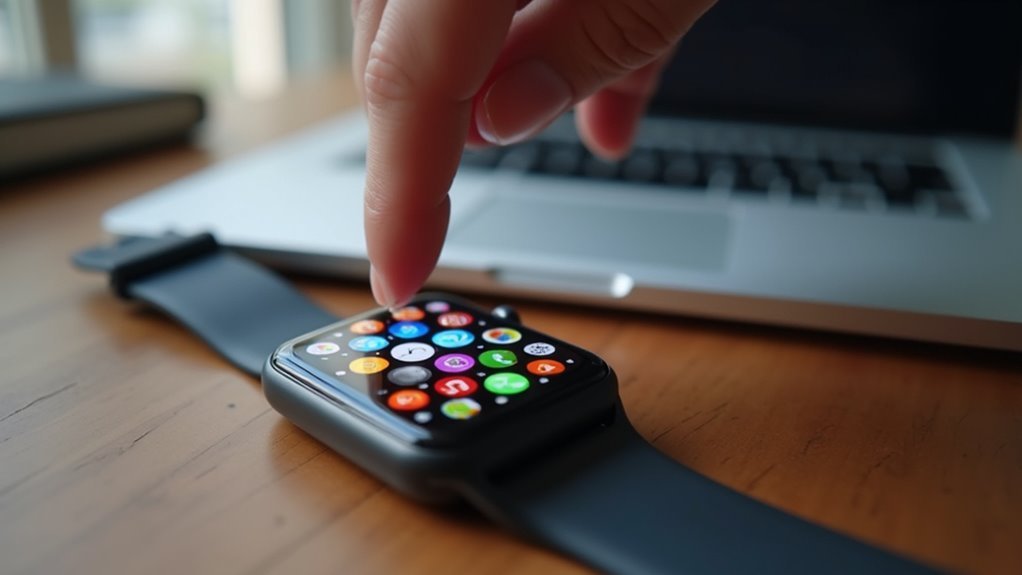
Popular smartwatches like Apple Watch and Samsung Galaxy Watch integrate seamlessly with messaging platforms, delivering app-specific quick reply options directly to your wrist.
Some models even support gesture-based responses, letting you reply with minimal interaction.
Advanced smartwatch models enable gesture-controlled messaging responses, allowing users to communicate effortlessly without touching the screen or using voice commands.
However, you’ll face platform restrictions depending on your smartphone’s operating system, and not all messaging apps support smartwatch quick replies. The display size significantly impacts your typing experience and message readability when composing replies.
Additionally, frequent use can drain your battery faster than standard notifications.
Use Context-Aware Responses for Different Situations
Beyond simple quick replies, your smartwatch can intelligently adapt its response options based on what you’re doing and where you are.
Context-aware technology uses your device’s sensors to detect activities, location, and environmental factors, then suggests the most relevant replies for each situation.
Your smartwatch processes this information on-device, ensuring quick responses without draining your battery or using excessive data. The system maps sensor data to meaningful states like “meeting,” “driving,” or “jogging,” then tailors your reply options accordingly.
Since dictation accuracy can suffer in noisy environments or with accents, context-aware responses provide reliable alternatives when voice input isn’t practical.
- Activity-based responses – Get different reply suggestions while exercising versus working
- Environmental adaptation – Silent replies automatically activate in quiet spaces
- Time-sensitive filtering – Urgent messages get prioritized based on your current context
- Object recognition triggers – Touching specific devices can automate relevant responses
Maximize Efficiency With Voice and Gesture Controls
When you’re juggling multiple tasks or moving around, voice commands and gesture controls transform your smartwatch into a truly hands-free communication hub. You’ll experience faster message initiation through voice commands, which enable nearly instant action without menu navigation. Gesture controls feel more intuitive and engaging, achieving over 90% recognition rates in ideal conditions.
| Feature | Voice Commands | Gesture Controls |
|---|---|---|
| Speed | Nearly instant action | Moderate response time |
| Accuracy | High in quiet settings | 90%+ in ideal conditions |
| Environment | Struggles with noise | Robust across conditions |
| Learning Curve | Immediate use | Requires practice |
| Accessibility | Limited dexterity friendly | Motion-dependent |
You can combine both methods for maximum adaptability, as your smartwatch’s built-in sensors support gesture recognition without additional devices. However, keep in mind that resource constraints on smartwatches can impact the complexity of gesture recognition models, making efficient system design crucial for optimal performance.
Frequently Asked Questions
Do All Smartwatches Support Quick Replies or Only Specific Models?
Not all smartwatches support quick replies – only specific models do. You’ll find this feature mainly on Android-compatible watches like Samsung Galaxy Watch and Amazfit GTR Mini, while Apple Watches have limited functionality.
How Long Is the Battery Life When Using Quick Reply Features Frequently?
Frequent quick replies can drain your smartwatch battery from several days to less than 24 hours. You’ll get longer life with Fitbit devices, while heavy messaging reduces high-capacity watches considerably.
Can I Use Quick Replies When My Phone Is Completely Turned Off?
You can’t send quick replies when your phone’s completely turned off. Your smartwatch needs the phone powered and connected to process and send messages, since watches function as companion devices, not standalone communicators.
What’s the Maximum Character Limit for Custom Quick Reply Messages?
Character limits vary considerably by device. You’ll get 36 characters on Huawei Band 9, 140 on Garmin Connect and Nothing watches, while Garmin’s D2 Air X10 technically allows 1500 characters per message.
Are Quick Replies Secure and Encrypted Like Regular Text Messages?
Quick replies aren’t automatically encrypted differently than regular messages. Your encryption depends on the messaging app you’re using. Apps like Signal maintain end-to-end encryption, while standard SMS doesn’t encrypt messages regardless.
In Summary
You’ll transform your smartwatch messaging experience by implementing these five strategies. Don’t underestimate how much time you’ll save with properly configured quick replies and optimized notifications. You’re now equipped to handle messages efficiently across different apps and situations. Remember to practice using voice commands and gestures until they become second nature. Your wrist-based communication will become seamless, keeping you connected without constantly reaching for your phone.

Leave a Reply