
You should change your Apple Watch alert tones to instantly distinguish between different notification types without checking your wrist. Custom tones help you identify important contacts, prioritize urgent messages, and reduce unnecessary distractions from routine updates. To customize them, open the Apple Watch app on your iPhone, navigate to “My Watch,” then access “Notifications” to adjust individual app settings and volume levels. You’ll discover additional customization strategies and workarounds that maximize your notification efficiency.
The Benefits of Personalizing Your Apple Watch Alert Tones
Five game-changing benefits emerge when you customize your Apple Watch alert tones, transforming how you interact with notifications throughout your day.
You’ll instantly distinguish between different notification types—texts, calls, and emails—without glancing at your wrist. Custom tones enhance your recognition speed, letting you identify message sources immediately while staying focused on current tasks.
Personalization becomes your productivity superpower. You can associate specific tones with important contacts, enabling smarter response prioritization. This targeted approach reduces distractions by clearly signaling high-priority notifications versus routine updates.
Smart tone assignment transforms notification chaos into organized productivity, letting you instantly identify priority messages while filtering out digital noise.
Your Apple Watch experience becomes uniquely yours through WatchOS 11’s expanded customization options. Custom tones integrate seamlessly with notification settings and watch faces, creating a unified interface. However, you’ll need to rely on standard notification sounds since the Apple Watch doesn’t support fully personalized notification tones for individual contacts.
Whether you’re in emergency situations requiring quick caller identification or workplace environments demanding efficient message sorting, personalized alert tones streamline your digital interactions while maintaining your personal style.
Step-by-Step Guide to Changing Alert Tones Through Settings
Now that you understand the advantages of customizing your Apple Watch alerts, let’s walk through the actual process of modifying these settings.
Start by opening the Apple Watch app on your iPhone and tapping “My Watch.” Scroll down and select “Notifications” to access your notification controls.
Here, you’ll find individual app settings where you can choose specific apps like Messages for customization. For each app, you can toggle between “Allow Notifications” or “Notifications Off” depending on your preferences.
While Apple Watch doesn’t directly support custom alert tones, your notification settings mirror those on your iPhone.
The watch comes with default tones that you’ll manage through your iPhone settings, giving you indirect control over your alert customization experience. For ringtones and alerts specifically, you can access the Settings app directly on your Apple Watch and navigate to Sounds & Haptics to adjust volume levels using the volume buttons or slider with the Digital Crown.
Using Your Iphone to Customize Apple Watch Notifications
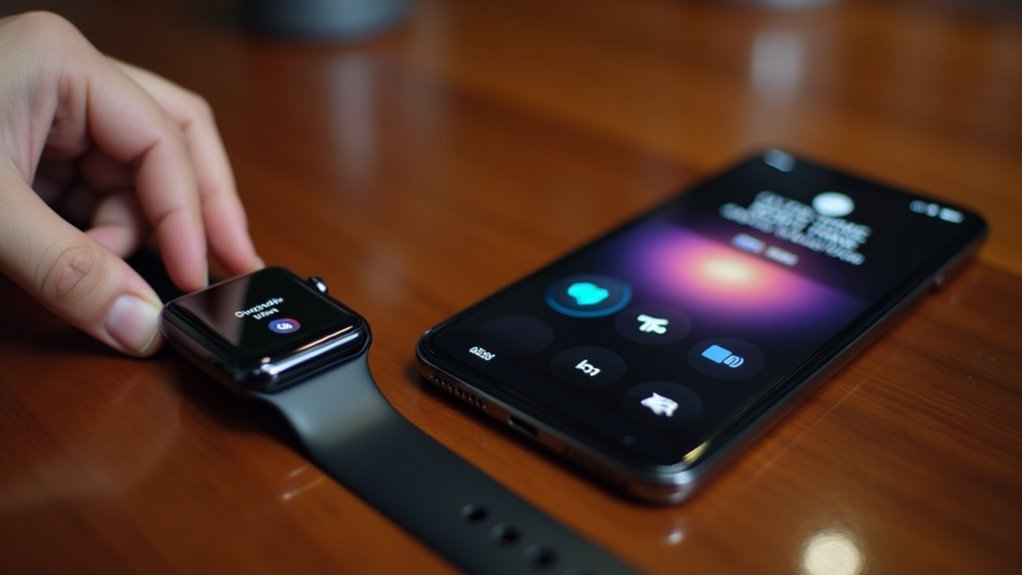
For specific apps, scroll to Mirror iPhone Alerts From to manage which alerts transfer to your watch. You can choose custom settings that allow notifications to be permitted, sent to Notification Center, or completely disabled.
Understanding Volume and Haptic Feedback Options
Your Apple Watch offers extensive control over how you receive notifications through both audio alerts and physical vibrations.
You can fine-tune these settings to create a personalized notification experience that matches your preferences and lifestyle needs.
The volume control system lets you adjust alert levels using a slider in Sounds & Haptics settings, while the Digital Crown provides precise volume adjustments.
For haptic feedback, you’ll find options to customize vibration intensity and enable Prominent Haptics for more noticeable alerts. You can also adjust these haptic settings directly through the Apple Watch app on your iPhone for added convenience.
- Volume Management: Use the volume slider and Digital Crown for precise alert level control
- Haptic Intensity: Choose between Default or Prominent feedback settings
- Silent Mode: Quickly disable all alerts when needed
- Crown Haptics: Enable or disable vibration feedback for Digital Crown scrolling
- System-Wide Controls: Manage haptics globally across all watch functions
Maximizing Notification Efficiency With Custom Tones
While Apple Watch comes with standard notification sounds, customizing alert tones transforms how you interact with incoming messages and app notifications.
You’ll immediately recognize whether it’s an urgent work email or a casual text from friends without glancing at your wrist. This audible differentiation helps you prioritize responses and avoid unnecessary distractions during focused tasks.
Custom tones improve your situational awareness by conveying message urgency through sound alone. You can assign specific tones to different communication channels, making it easier to manage multiple conversations simultaneously. If you experience notification issues, checking your sound settings in Control Center and ensuring Theater Mode isn’t activated can resolve common alert problems.
Sound-based priority systems let you instantly identify message importance and manage multiple conversations without visual confirmation.
For critical health and safety notifications, unique alert patterns guarantee you won’t miss important alerts. By creating identifiable sound signatures for various apps and contacts, you’ll develop better notification habits and reduce the mental overhead of constantly checking your device.
Current Limitations and Workarounds for Apple Watch Alert Customization
Despite the clear benefits of personalized alert tones, Apple Watch faces significant restrictions that limit your customization options. You can’t change alert tones for specific apps like Messages, and all notifications use the same built-in sounds. Apple prioritizes simplicity and battery efficiency over extensive customization features.
However, you can work around these limitations:
- Adjust haptic feedback strength to create different notification experiences
- Control volume levels to help distinguish between various alerts
- Filter notifications to reduce alert overwhelm and improve focus
- Mirror iPhone app settings through some third-party applications
- Manage notification timing to control when you receive specific alerts
While these workarounds don’t provide true tone customization, they help you create a more personalized notification experience within Apple’s current framework. Many users find the high-pitched ding for text notifications particularly annoying and have resorted to turning off sound alerts entirely for Messages.
Future Possibilities for Enhanced Apple Watch Sound Personalization
As Apple continues to evolve the Watch platform, several promising developments could transform how you experience and personalize alert sounds.
Future models might integrate AI-driven customization that analyzes your preferences to suggest personalized tones and audio settings automatically. Enhanced noise cancellation features could guarantee you’ll hear alerts clearly in any environment, while advanced audio processing will deliver superior sound quality.
You’ll likely see expanded customization options, including personalized melodies and health-integrated sound adjustments that respond to ambient noise levels.
Cross-device integration could let you manage unified sound preferences across all Apple devices from one interface. Biometric sound adjustments might optimize alerts based on your hearing needs, while sound-based health notifications could use distinct patterns to improve your engagement with wellness features. The Apple Watch already demonstrates this approach through sleep apnea notifications that provide specific alerts for breathing disturbances detected during sleep monitoring.
Frequently Asked Questions
Can I Use My Own Music Files as Apple Watch Alert Tones?
You can’t use your own music files as Apple Watch alert tones. The watch only supports Apple’s preset tones, limiting you to about eight built-in options for notifications and alerts.
Do Third-Party Apps Offer Additional Apple Watch Notification Sound Options?
Third-party apps rarely offer additional notification sound options on your Apple Watch. You’re limited to each app’s built-in sounds, and most don’t provide customization settings for changing alert tones.
Will Changing Alert Tones Affect My Apple Watch Battery Life Significantly?
You won’t see significant battery impact from changing alert tones. Default tones consume negligible power, and switching between them doesn’t engage additional hardware meaningfully or drain your battery noticeably.
Can I Schedule Different Alert Tones for Specific Times of Day?
You can’t schedule different alert tones for specific times on Apple Watch. There’s no native feature for time-based tone scheduling. You’ll need to manually change notification settings if you want different sounds throughout the day.
Are There Any Accessibility Features for Hearing-Impaired Apple Watch Users?
You can enable Mono Audio for hearing loss in one ear, use Prominent Haptic for stronger vibrations, access Live Listen with real-time captions, and utilize RTT for text during phone calls.

Leave a Reply