You’ll need a compatible Galaxy Watch (Watch 3 or newer) and Samsung smartphone running Android 12 or higher to activate ECG functionality. Download the Samsung Health Monitor app from Galaxy Store on both your phone and watch, ensuring your watch software is updated through the Galaxy Wearable app first. Open the app on your watch, grant sensor permissions, configure wrist settings, then follow on-screen prompts to complete setup. Continue below for detailed troubleshooting and regional workarounds.
Prerequisites and Device Compatibility Requirements
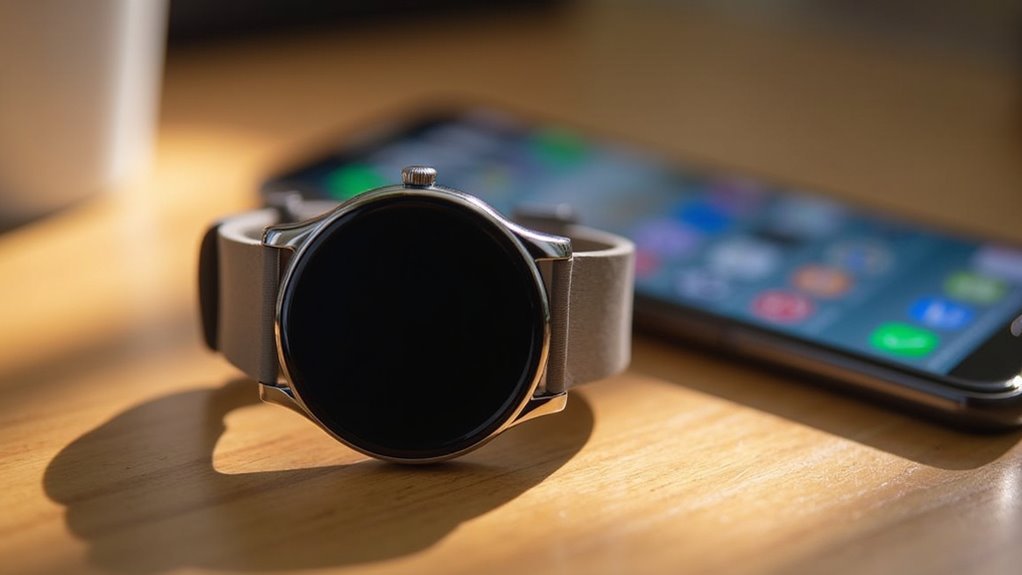
Before you can start monitoring your heart rhythm with ECG readings, you’ll need to guarantee your Samsung Galaxy Watch and smartphone meet specific compatibility requirements.
Your watch must be a Galaxy Watch 3, Watch Active2, Watch 4, Watch 5, Watch 6, or later model, as older versions don’t support ECG functionality.
You’ll also need a compatible Samsung Galaxy smartphone running Android 9 or newer for initial setup and pairing. Your phone must specifically run Android OS 12.0 or higher to ensure proper functionality with the Samsung Health Monitor app.
Both devices require Bluetooth connectivity and must run compatible software versions—ensure your watch has the latest Wear OS installed.
The Samsung Health Monitor app is essential for ECG operation and must be downloaded from the Galaxy Store.
Remember that ECG availability depends on your region’s regulatory approvals, so feature access may vary by location.
Installing Samsung Health Monitor App on Watch and Phone
Two essential downloads are required to activate ECG functionality on your Samsung Galaxy Watch.
You’ll need to install the Samsung Health Monitor app on both your Galaxy smartphone and watch.
Start by downloading the Samsung Health Monitor app from the Galaxy Store on your connected Galaxy phone. Once found, tap to download and install it directly.
Next, install the companion app on your watch through the same Galaxy Store while maintaining Bluetooth connectivity between devices.
Before installation, verify your watch software is updated through the Galaxy Wearable app.
The entire process uses Bluetooth connection, so no physical cables are necessary.
During installation, you’ll need to grant necessary permissions to ensure the app functions properly and can access your health data.
Verify device compatibility and check regional availability, as the app may not be accessible in all locations due to regulatory differences.
Step-by-Step ECG Activation Process
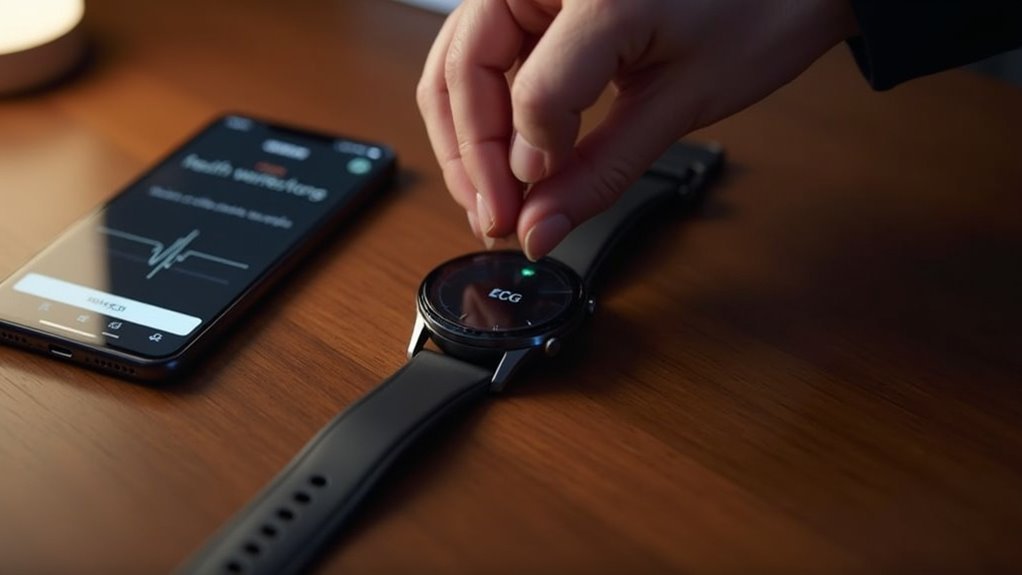
After installing the Samsung Health Monitor app on both devices, you’ll need to complete several configuration steps to activate ECG monitoring on your Galaxy Watch.
First, open the Samsung Health Monitor app on your watch and tap “Learn more” to grant sensor permissions. You’ll need to allow body sensor data access and enable continuous monitoring. Next, configure your wrist settings through the Wearable app, ensuring you’ve selected the correct wrist orientation and your watch fits snugly above the wrist bone.
| Step | Action | Duration |
|---|---|---|
| Setup | Grant sensor permissions | 2-3 minutes |
| Configuration | Set wrist orientation | 1 minute |
| Recording | Touch button, stay still | 30 seconds |
| Review | Analyze and save results | 1 minute |
Follow the on-screen prompts for your first ECG recording, maintaining position for thirty seconds while touching the top button. Remember that ECG results can be accessed and reviewed through the Samsung Health Monitor App on your Galaxy phone for detailed analysis.
Enabling ECG in Unsupported Regions Using Modded Apps
While Samsung officially restricts ECG functionality to specific regions, you can enable this feature on your Galaxy Watch using modded applications developed by the community.
These apps, often created by developers like Dante63 from XDA forums, bypass regional restrictions and activate ECG monitoring capabilities.
To install, you’ll need the modded Samsung Health Monitor app on both your phone and Galaxy Watch.
Confirm Galaxy Wearables is paired with your watch and install the Galaxy Watch 4 plugin from Play Store.
Download the modded app from trusted sources like XDA forums.
The installation requires ADB commands on your PC to properly install the modded app on your Galaxy Watch 4.
However, consider the risks.
Modded apps aren’t officially supported and may pose security concerns.
Verify your source’s reputation and understand local regulations regarding modified health monitoring software before proceeding.
Using ECG Features and Interpreting Heart Rhythm Results
Once you’ve successfully enabled ECG functionality on your Galaxy Watch, you’ll need the Samsung Health Monitor app to access and analyze your heart rhythm data. To capture an ECG reading, rest your forearm on a flat surface and lightly touch the top button with your opposite hand’s finger for 30 seconds while remaining still.
| Reading Result | What It Means | Next Steps |
|---|---|---|
| Sinus Rhythm | Normal heart rhythm detected | Continue regular monitoring |
| Atrial Fibrillation | Irregular rhythm identified | Consult healthcare provider |
| Inconclusive | Unable to determine rhythm | Retake measurement when calm |
Your watch analyzes electrical signals and can detect irregular rhythms in the background. You can set up irregular heart rhythm notifications to receive alerts when your watch detects an irregular rhythm lasting for one hour during daily pulse checks. Remember, ECG results aren’t medical diagnoses—always share findings with your healthcare provider for proper interpretation.
Frequently Asked Questions
Can I Use ECG While Exercising or During Physical Activity?
You shouldn’t use ECG while exercising or during physical activity. Movement and increased heart rate cause inaccurate results. You’ll need to remain still and at rest for proper readings.
How Often Should I Take ECG Readings for Optimal Health Monitoring?
You should take ECG readings regularly, ideally daily or when you notice symptoms. Consistent monitoring helps detect irregular heart rhythms like atrial fibrillation early for better health insights.
Does ECG Feature Drain the Galaxy Watch Battery Faster Than Normal?
Yes, you’ll notice ECG readings drain your battery faster than normal. Each measurement activates sensors and triggers data processing, but it’s temporary drain rather than continuous consumption affecting overall battery life.
Can I Share ECG Results Directly With My Doctor From the App?
You can’t share ECG results directly from the Samsung Health Monitor app to your doctor’s system. You’ll need to export the PDF report and manually send it via email or messaging.
What Should I Do if ECG Readings Consistently Show Irregular Patterns?
You should consult a healthcare provider immediately for proper evaluation and diagnosis. Don’t ignore persistent irregularities – they may indicate serious heart conditions requiring medical treatment or medication adjustments.
In Summary
You’ve now learned how to activate ECG on your Samsung Galaxy Watch through official and unofficial methods. Remember that ECG readings aren’t substitutes for professional medical diagnosis, so don’t rely on them for critical health decisions. If you’re experiencing concerning symptoms or irregular readings, consult your healthcare provider. Keep your Samsung Health Monitor app updated and make certain you’re taking measurements correctly for the most accurate results from your watch’s ECG feature.