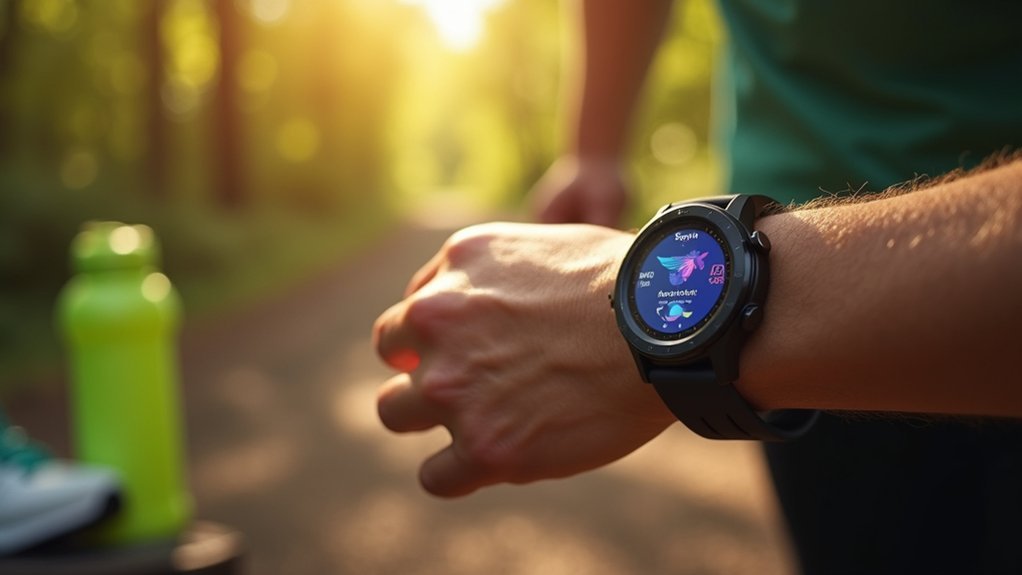
You’ll want to choose a running watch with strong haptic feedback like the Garmin Forerunner series, then customize vibration intensity to high for noisy environments. Set up activity-specific Focus modes to filter notifications during runs, and optimize battery life by using shorter vibration durations while disabling unnecessary GPS features. Create notification-specific vibration patterns when possible, and enable prominent haptic alerts for critical pace or navigation cues. These foundational steps will transform your training experience.
Choose the Right Silent Mode for Your Running Environment
When selecting a running watch for silent alerts, your environment plays an important role in determining which features you’ll need most. In noisy environments, you’ll need stronger vibrations since subtle alerts won’t be effective against background noise.
For low-light conditions, choose watches with adjustable screen brightness like the Apple Watch Ultra 2’s 1.4-inch MIP display, which offers better visibility without being overly bright.
Weather conditions also matter—rain or extreme temperatures can affect your watch’s functionality, so guarantee water resistance is adequate. Many premium watches include contactless payments and offline music capabilities that can enhance your running experience while maintaining silent alert functionality.
On obstacle-heavy terrain, you’ll require more frequent alerts, making battery efficiency vital. Consider the Coros Pace Pro’s 38-hour battery life or solar-powered options like the Garmin Enduro 3 for extended outdoor adventures.
Customize Vibration Strength and Patterns for Effective Alerts
Since different running situations demand varying levels of alert intensity, you’ll want to master your watch’s vibration customization options to guarantee you never miss important notifications while avoiding unnecessary distractions.
Most running watches offer multiple vibration intensity levels. Garmin devices typically provide low, medium, high, or off settings, while Samsung smartwatches offer Light or Strong options. You can adjust these through your device’s settings menu or companion app.
| Alert Type | Recommended Strength | Pattern Customization |
|---|---|---|
| Phone Calls | High/Strong | Long pulses |
| Text Messages | Medium/Light | Short bursts |
| Navigation Updates | High/Strong | Triple pulse |
Create notification-specific patterns when possible. Samsung smartwatches allow different vibration patterns for calls versus notifications. Set stronger vibrations for critical alerts like emergency messages, and weaker ones for social media notifications to maintain focus during your runs.
For Apple Watch users, you can enable Prominent haptic alerts through the Sounds & Haptics settings to add extra emphasis for important notifications during your workout.
Optimize Battery Life While Using Silent Alert Features
Although silent alerts consume less power than audible notifications, prolonged use of vibration features can still drain your running watch’s battery faster than you’d expect.
You can extend battery life by activating low power modes, which disable nonessential background app refresh and reduce screen brightness. Minimize screen timeout duration and avoid watch faces with dynamic animations or constantly updating seconds.
Turn off Bluetooth when you’re not transferring data, disable GPS systems you don’t need, and use airplane mode when connectivity isn’t necessary.
Disable unnecessary activity tracking like move alerts and goal notifications that generate frequent vibrations. Use the shortest effective vibration duration for each alert to reduce power consumption per notification. Watch for battery alerts that typically occur at 10% or lower levels, as this prompts automatic low power mode activation to preserve remaining charge.
Set Up Activity-Specific Focus Modes and Do Not Disturb Settings
Battery optimization works hand-in-hand with managing which notifications reach your watch during runs. Setting up activity-specific Focus modes guarantees you’ll only receive essential alerts while maintaining longer battery life.
On Apple Watch, access Focus modes through Control Center by pressing the side button. Create custom running Focus modes on your iPhone via Settings > Focus, then customize which apps can send notifications. You can set automatic activation during workouts or manually enable them.
| Feature | Apple Watch | Garmin Watch |
|---|---|---|
| Focus Access | Control Center | Activity Settings |
| Custom Creation | iPhone Settings | Watch Interface |
| Auto Activation | Schedule-based | Activity-triggered |
| Notification Control | App-specific | Alert customization |
| Visual Indicator | Watch face icon | Display settings |
Do Not Disturb offers similar benefits with automatic scheduling options and time-sensitive notification control for uninterrupted training sessions. When selecting a running Focus, you’ll see options for On for 1 hour or until a specific time, making it easy to match your workout duration.
Select Running Watches With Strong Haptic Feedback Capabilities
When you’re running with music pumped through earbuds or in noisy environments, you’ll need a watch that delivers strong haptic feedback to guarantee you don’t miss important alerts.
Garmin’s Forerunner series stands out for robust haptic notifications, though customization varies by model. Coros Pace 3 provides strong feedback but may experience delayed alerts during high-intensity runs.
Apple Watches offer reliable haptic alerts but often require additional devices for full customization.
Consider that stronger haptic feedback drains battery faster, so balance your needs accordingly. Watches with solar charging capabilities like the Garmin Fēnix 7X can help offset this increased power consumption from frequent vibrations.
Watch thickness affects how you’ll perceive vibrations – thinner models like the Coros Pace 3 may feel less pronounced.
Look for watches with customizable alert intensity settings, allowing you to adjust vibration strength based on your running conditions and personal preferences.
Frequently Asked Questions
Can Silent Alerts Work Underwater or During Swimming Activities?
Silent alerts can work during swimming, but they’re less effective underwater due to water interference. You’ll find most smartwatches automatically adjust notification settings during swim modes for safety reasons.
Do Silent Alerts Interfere With Heart Rate Monitor Accuracy?
Silent alerts don’t greatly interfere with your heart rate monitor’s accuracy. You might experience brief, minor data spikes from vibration-induced wrist movement, but proper watch fit minimizes this effect and sensors quickly self-correct.
Will Silent Mode Affect GPS Tracking Precision During Runs?
Silent mode won’t affect your GPS tracking precision during runs. It only controls alerts and notifications, not GPS signal reception. Environmental factors like tree coverage impact accuracy more than your watch’s silent settings.
Can I Receive Emergency Calls While Using Silent Alert Modes?
You can receive emergency calls while using silent alert modes if you’ve enabled emergency bypass settings. However, some watches may block emergency calls when in silent or Do Not Disturb mode, so check your specific device’s settings.
Do Silent Alerts Work With Third-Party Running Apps?
Silent alerts work inconsistently with third-party running apps on most smartwatches. You’ll find vibration-only notifications depend on your specific watch OS and app integration level, with limited customization options compared to native system apps.